Decision Craft Wiki
How To Play
From creating a lobby to inviting friends and starting the game.
Create Or Join A Lobby
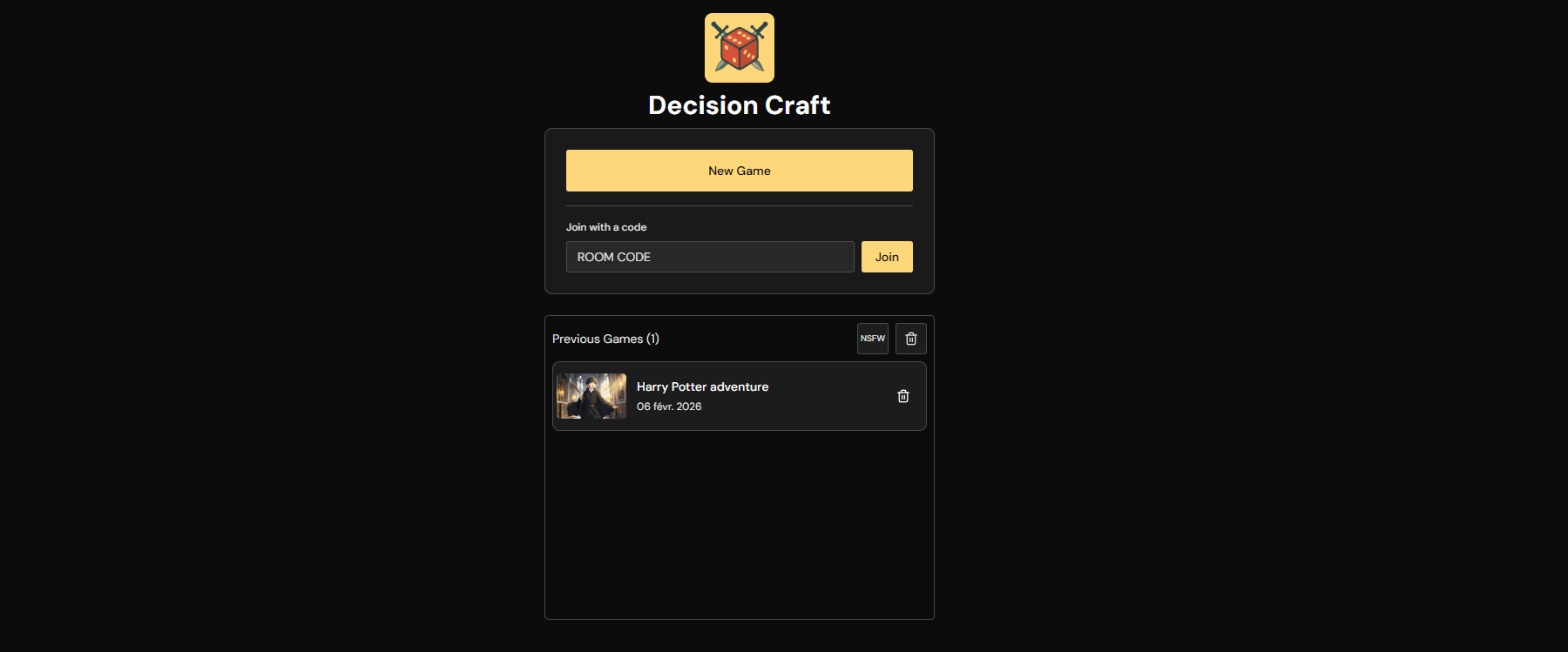
Go to /game to start. You can:
- Create a new game.
- Continue a previous game.
- Join with a room code or invite link.
Only the host can start the game.
Invite Friends
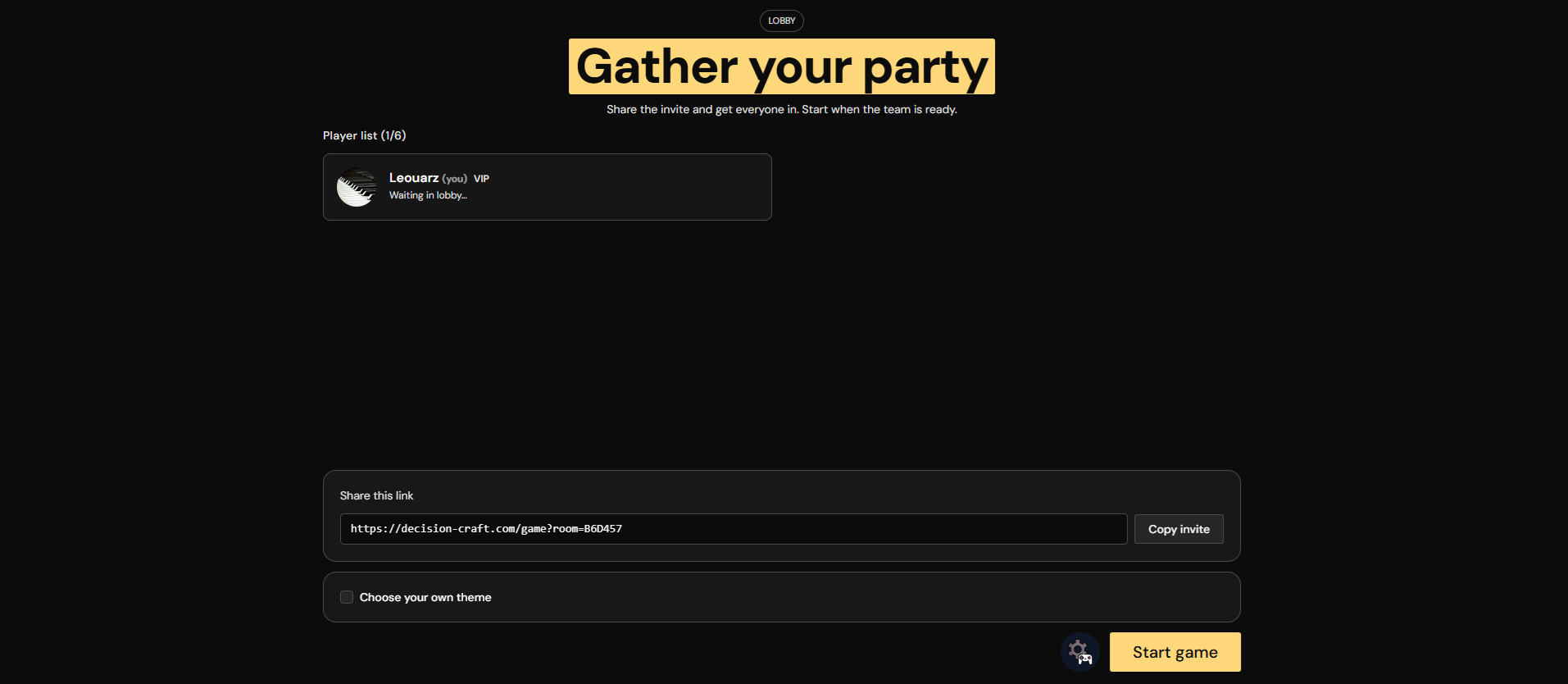
From the lobby, share either:
- The invite link shown in the lobby.
- The room code from Room Info.
Multiplayer supports up to 6 players.
Lobby Options (Room Info)
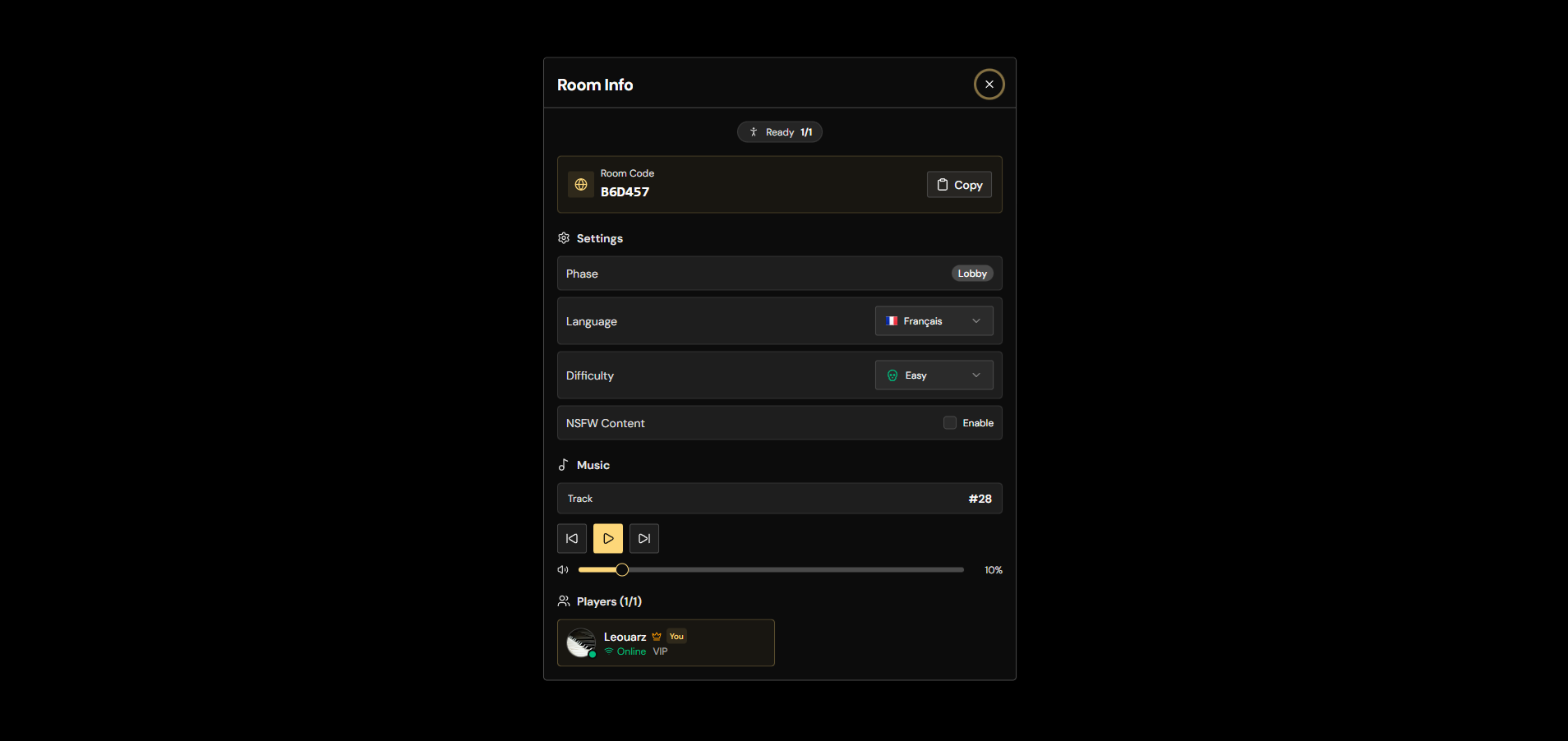
The host can configure the run from Room Info:
- Language: Many languages are supported (also used by text-to-speech).
- Difficulty: GodMode, Easy, Normal, or Hard.
- Text model: Choose the model you prefer and switch during a game without breaking the run. Changing models can help you favor speed, richer roleplay, steadier narration, or whichever play feel works best for your group. You can change the text model at any time; nothing is lost.
- NSFW: Only available if all players allow NSFW.
- Room code: Copy to invite others.
- Players list: Host badge, connection status, and credit labels.
- Background music: Play/pause and volume controls.
Roll Rules
Rolls are hidden, but they decide outcome quality in each round:
- Base roll depends on room difficulty (GodMode/Easy/Normal/Hard).
- The relevant character attribute is added to the base roll.
- Final score is capped at 100 and compared to choice difficulty.
For full details, see Game Systems.
Previous Games And Continuing
From /game, you can pick a Previous Game to continue. This recreates a
new lobby for the same game, so you can:
- Rejoin after disconnecting.
- Add a new friend mid-campaign (they get a character).
- Continue after someone leaves.
When Joining Is Blocked
- If the game already started, only existing players can rejoin directly.
- New players must join through a recreated lobby for the same game.
Custom Theme
The host can choose a custom theme by providing a name and description. This can be done in the lobby, or during theme voting.
When using a custom theme, each player can also add a character wish. A wish is a short sentence about the kind of character they want to play, and the generator uses it to produce something relevant to the chosen setting.
You can also export the current theme from Room Info during a game, or
from Previous Games for any past run. Exported themes are saved as
.dctheme files that capture the theme name, description, world, and image
data — but not the story, characters, quests, or choices.
To import a theme, open the custom theme screen (from the lobby or during
theme voting), choose Import theme file, and pick a .dctheme file. The
adventure will start from that same theme, but the story, characters, quests,
and outcomes will be generated fresh — so you can replay a favorite setup in a
completely different way.
Story Book And Room Tools
From Room Info, players can also:
- Download a free Story Book PDF of the adventure so far.
- Toggle confidential mode to blur images on their own device.
- Adjust music, review room settings, and check who is connected.
Start The Game
When the party is ready, the host clicks Start game. The game will go through theme generation, world generation, character selection, quests, and then gameplay begins. The run starts like a one-shot, but if everyone wants to keep going, the story can continue for many rounds.
If The AI Misses A Detail
During Scenario Result, the game includes an Edit tool:
- Players can refine their own character text and revert to previous portraits.
- The host can correct NPC text, portraits, items, skills, and quest flow.
- Every manual change is saved in the edit history for that round.
Dialogue Mode
During a round, you can switch from Act to Talk:
- Select 1 to 4 NPCs.
- Write what your character says to that small group.
- The AI handles the whole exchange in one step.
- Usually one NPC answers first, but multiple selected NPCs can respond and speak to each other when it feels natural.
Rejoining, Spectating, And Continuing
- If you disconnect, you can rejoin and keep playing.
- If your character is eliminated, you rejoin as a spectator and can still watch.
- You can recreate a lobby for the same game from "Previous Games." This allows new players to join and receive a character.
- You can also continue a lobby after a player leaves.