Decision Craft Wiki
Scenario Results & HUD
Everything you see during gameplay, explained.
Scenario Results (The Main Game Screen)
Once the game reaches Scenario Result, this is where you spend most of your playtime. The screen is split into story, choices, and tools.
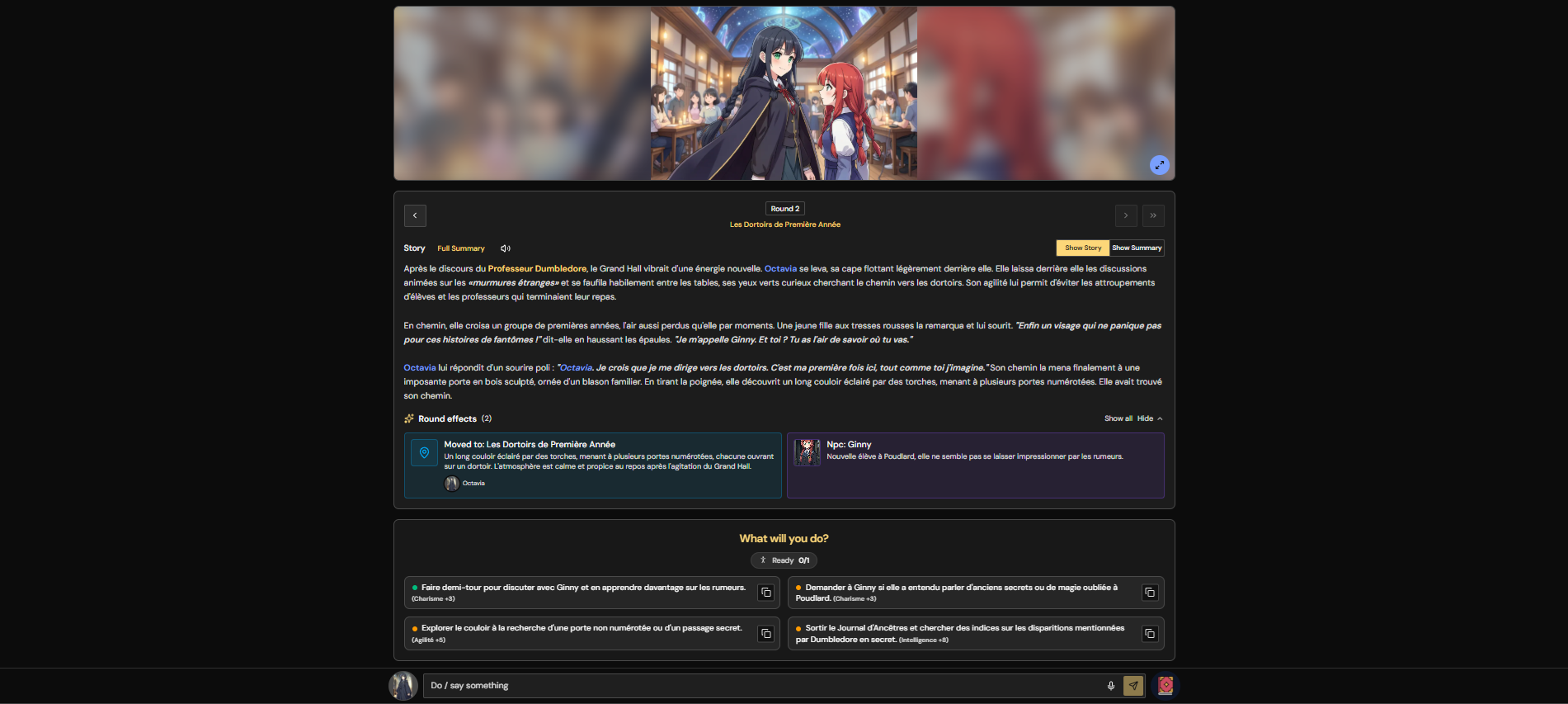
1) Scene Image (Top Panel)
- Shows the current scene as an AI-generated image.
- Click to view full screen.
- If the scene image changes, it reflects the latest round.
- Generated images are usually available for 1 week to 1 month. Older images may expire and no longer load.
2) Round Navigator
- Shows your current round.
- Lets you review previous rounds.
- Shows your current location and opens the Locations view.
3) Story, Summary, And Full Summary
- Toggle between Story and Summary.
- Open the Full Summary modal for all rounds.
- Text-to-speech controls are placed here and use the room language.
- Names of characters and NPCs are highlighted in the story for clarity.
- Dialogue history appears here when you talk to NPCs.
4) Status Indicator
The status pill shows:
- Ready with a player count.
- Waiting if players haven't locked in choices.
- Loading during AI generation.
- Restart if a non-retryable error occurred.
5) Effects And Outcomes
- Active effects persist across rounds.
- Round effects list the changes from this turn.
- Quest outcome banner appears when a quest completes.
- Completed choices show what each player did.
- Eliminations show fallen characters or NPCs.
- Game Over appears when the run finishes.
6) Choice Cards
Each round displays a set of AI choices. You can:
- Vote for a choice.
- Copy a choice into the custom input and edit it.
7) Custom Choice / Dialogue Bar (Bottom)
- Type any action or dialogue (up to 480 characters).
- Switch between Act and Talk.
- In Talk, pick an NPC and speak directly to them.
- Use speech-to-text if your browser supports it.
- Press Enter to send, Shift + Enter for new lines.
- The send button submits your custom choice immediately.
Dialogue is limited to 20 NPC exchanges per round.
This is where the game becomes most fun - it's always better with people and when you write custom choices.
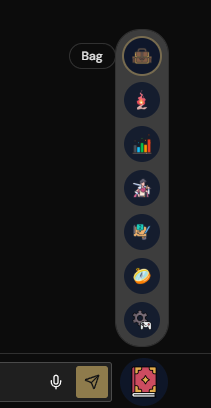
8) Quick Menu (Bottom Right)
The quick menu opens the core game tools:
- Bag: Your items.
- Skills: Abilities (spells) your character can use.
- Stats: Character attributes.
- Characters: Party and NPC list.
- Quests: Main and personal quests.
- World: Lore, currency, and locations.
- Notepad: Your personal notes for the run.
- Edit: Manual corrections for important AI mistakes.
- Room Info: Room settings and players.
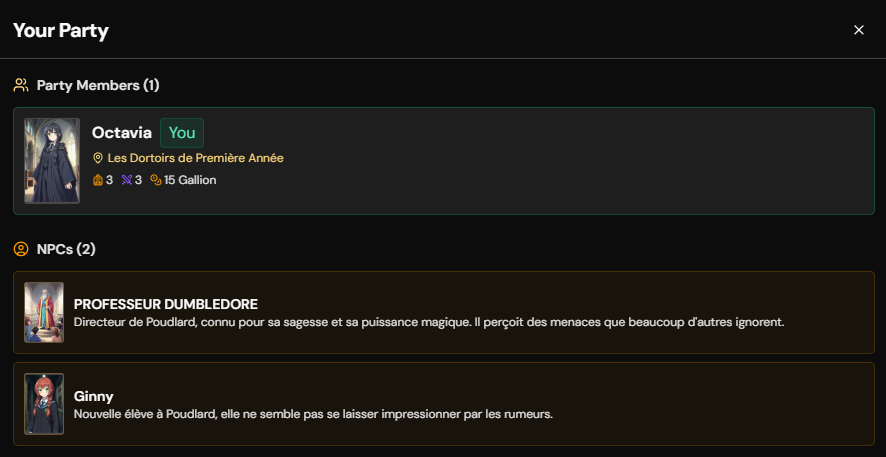
9) Character & Party Views
- Character modal: Bag, Skills, and Stats tabs.
- Use Item/Skill buttons prefill a custom choice.
- Characters modal: Party list, money, locations, and NPCs.
- Eliminated characters appear as Fallen.
- If your character is eliminated, you continue as a spectator.
10) Quests View
- Shows the Main Quest and your Personal Quest.
- Rewards can be money, items, skills, or story outcomes.
11) World View
- World lore, traits, currency, and locations.
- Location history and party positioning.
- Theme art and world cover image.
12) Room Info & Music
- Room code, language, difficulty, and music settings.
- Player list with host and connection status.
- Background music play/pause and volume controls.
- Music preferences are remembered for your device.
- Confidential mode can blur images on your device.
- Story Book PDF can be downloaded from here.
13) Edit Modal & History
- Use Edit when the AI got an important detail wrong.
- Players can fix their own character text and revert portraits.
- Hosts can correct NPCs, items, skills, and some quest outcomes.
- Edit history is saved per round so the group can see what was changed.
14) Leaving The Game
- Use the Leave button in the top navigation.
- If the host disconnects, the game pauses until they return.
- If the host leaves and doesn't return, the lobby can be recreated later.